> For the complete documentation index, see [llms.txt](https://help.stackdx.com/llms.txt). Markdown versions of documentation pages are available by appending `.md` to page URLs; this page is available as [Markdown](https://help.stackdx.com/projects/company-owned-projects/projects-summary.md).
# Projects Summary
### Overview
In StackDX you can view your Company Owned projects that are created from both your land system and within StackDX. The projects that are available to you will depend on the project settings determining whether certain individuals at the company or all users are allowed to access. This guide will demonstrate how to navigate to your projects and summarize different settings and contents.
Navigate to Projects Grid to access available Company Owned Projects
Navigate to the Projects Grid by clicking the 'Projects' menu to the left of the page. This will display all of the available Company Owned Projects you have access to view.
The project information will be displayed on the Project Grid including the Project Description/Name, Type, Owner, Internal Access and summary of the content totals.
To view the contents of a project click either the links in the ‘Related To’ column (ie. Mineral, Surface, Location, Wells, etc.) or the project description.
### 1. Project Info
The 'Project Info' tab will contain all of the general project settings including Project Type, Owner, Description, Internal Access and Project Status (ie. Active or Inactive). The information will be editable depending on the users permissions.
{% hint style="info" %}
Note: Project Info settings can only be modified by Project Owner and/or user with Admin role. See User Roles section for more details.
{% endhint %}
### 2. External Access
The 'External Access' tab will be enabled for any project types that can be shared with other companies (ie. Vendor, Partner or VDR). From this tab users can share the project with other companies via the **+Grant Access** option and control the land/asset documents availability by setting the Doc Access (ie. None, Selected Folders/Docs Only or All).
{% hint style="info" %}
Note: The Doc Access (ie. None, Selected Folders/Docs Only or All) chosen will be applied to ALL of the companies listed in the 'External Access' tab.
{% endhint %}
All of the companies that the project is currently shared with will be listed on the External Access Grid with their corresponding settings including External Access Type (ie. Contacts Only or All Users), Land & Asset Document view/upload/download permissions and any expiry dates applied.
Share project with a company
{% hint style="info" %}
Note: Users with any Admin role (Land, Wells/Locations or Facilities/Pipelines) will have the ability to share a project with another company.
{% endhint %}
1. Navigate to 'External Access' tab in project
2. Click **+Grant Access**
3. Enter & Select a Company in Receiver field
{% hint style="info" %}
Note: If the company does not exist they may be needed to be added by a StackDX Admin before you are able to share the project with the company. Alternatively, you could invite the person the project using the StackDX Guest Account by clicking the link below:

Contact to inquire about adding a company to StackDX.
{% endhint %}
4. Set company setting (External Access Type, Land & Asset Document view/upload/download permissions and expiry dates)
5. Click **Save**
The company will then be listed under the 'External Access' tab for the project.
### 3. Contacts
The 'Contacts' tab will contain all the Internal and External Contacts that have been invited to access a project.
**Internal Contact** - User from your company that has access to the project. Internal Contacts are invited via the **+Add Internal** option in the 'Contacts' tab.
Add Internal Contact to a Project
1. Navigate to 'Contacts' tab in project
2. Click **+Add Internal**
3. Click & Select users from the Contact(s) dropdown
{% hint style="info" %}
Tip: Can search for users to narrow results or you can paste in a list of comma separated emails.
{% endhint %}
4. Set the Land & Asset Internal and External Email Notifications for the contact(s)
5. Click **Save**
The user(s) will then be listed under the 'Contacts' tab for the project.
**External Contact** - User from a company the project is shared with that has access to the project. External Contacts are invited via the **Create Invite** option in the 'External Access' tab.
Add External Contact to a Project
1. Navigate to 'External Access' tab in project
2. Click dropdown next to external company
3. Click **Create Invite**
4. Enter Contact Name and Email
5. Click **Save**
{% hint style="info" %}
Note: The project invite will expire 7 days after they are created. If you require the invite to be renewed contact .
{% endhint %}
The user will receive an email invite to the project. They will either have to log into their existing account or create an account with the company and then accept the project invite.
After the project invite is accepted the user will then be listed under the 'Contacts' tab for the project.
{% hint style="info" %}
Note: Internal & External Contacts can only be invited to a project by Project Owner or user with Admin role. See User Roles section for more details.
{% endhint %}
#### Project Upload Email Notifications
Internal Contacts can be set up to receive either Internal or External email notifications when documents are uploaded to the project. These settings can be chosen when the contact is added to the project or can edit existing contacts.
The project upload email notification settings for each internal contact are displayed in the Notifications column in the 'Contacts' tab.
* **External Land & Asset Document Upload Notifications** - Users can be set to receive either None, Optional or Always when external user(s) upload documents. Users set to 'Always' will be automatically chosen for email notifications while users set to 'Optional' can be selected by the external user uploading the documents.
* **Internal Land and Asset Document Upload Notifications -** Users can be set up to receive project email notifications for specific Land or Asset Types and Categories. Users can set these specific Land or Asset Types and Categories in their Account Preferences. See Manage Upload Notifications Preferences sections in [Land](/land/the-basics/upload-documents/manage-upload-notifications-preferences.md) and [Assets](/assets/the-basics/upload-documents/manage-upload-notifications-preferences.md) for more details.
See [Add/Modify Contacts](/projects/company-owned-projects/create-and-manage-projects/add-modify-contacts.md) section for more details.
### 4. Criteria
The 'Criteria' tab will display any Land (ie. Contract, Mineral or Surface) or Asset (ie. Well, Facility or Pipeline) Criteria Searches that are available for the user to utilize when adding contents to the project. Users can add land files or assets to the project based on their chosen criteria.
There is the option to either manually refresh the project or have it automatically update nightly to keep your contents up to date.
{% hint style="info" %}
Note: If you would like to set the project to update nightly you will have to contact for a Stack Admin User to update the setting for the project.
{% endhint %}
See Create & Manage Projects section for more details on adding/modifying criteria to a project.
### 5. Land File Types Tabs
The Contract, Mineral and Surface Land File Grids will list all the land files present in the project with a summary of information (ie. Split Status, Contract Name, Contract Type, etc.). Users can view the land documents by clicking on the Land File Number or the document link in the ‘Related To’ column.
* **Contract** - All the Contract Land Files in the project will be displayed on the grid. Includes Contract, Joint Venture and Unit Land File Types.
* **Mineral** - All the Mineral Land Files in the project will be displayed on the grid
* **Surface** - All the Surface Land Files in the project will be displayed on the grid. Includes Crossing, Easement, Forestry, Road Use and Surface Land File Types.
Land Files can be added to the project either from the Land Files Grid, Single/Bulk Add options or from the Criteria tab. See Create & Manage Projects section for more details.
### 6. Asset Types Tabs
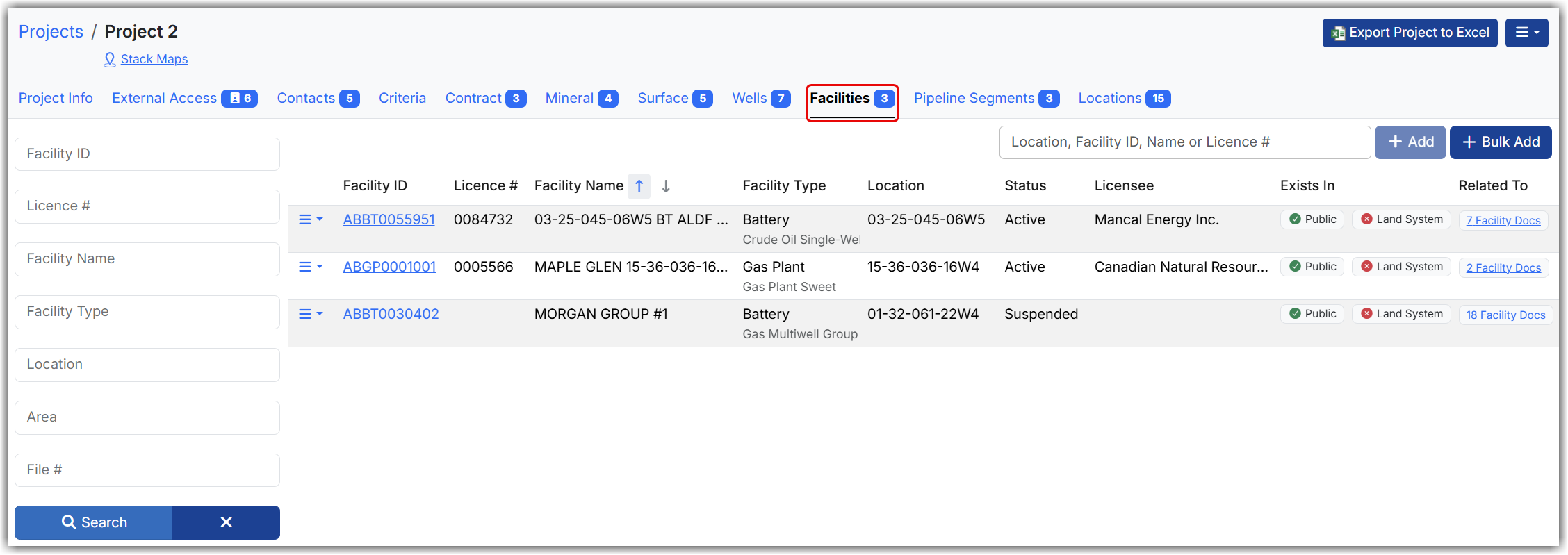
The Wells, Facilities, Pipeline Segments and Locations Grids will list all the assets present in the project with a summary of information (ie. UWI, Licence #, Status, Licensee, etc.). Users can view the asset documents by clicking on the UWI/Facility ID/Licence-Line #/Location or the document link in the ‘Related To’ column.
* Wells - All the well assets in the project will be displayed on the grid
* Facilities - All the facility assets in the project will be displayed on the grid
* Pipeline Segments - All the pipeline segment assets in the project will be displayed on the grid
* Locations - All the locations and its related assets in the project will be displayed on the grid
Assets can be added to the project either from the Assets Grid, Single/Bulk Add options or from the Criteria tab. See Create & Manage Projects section for more details.
### 7. Export
In Company Owned Projects there are options to either export the project contents to excel or export the land/asset documents to a ZIP file.
* **Export Project to Excel** - The exported file will contain all the project contents including the data displayed on the Land File and Assets Grids along with links to each of the documents to view in StackDX.
* **Export Well Doc Type Summary to Excel** – This is ONLY available when clicked on the Wells tab. The exported file will contain the Well Document Type (ie. Daily Completion/Workover Report) counts for the wells in the project.
* **Export Land Docs to Zip** - Export all the land documents that exist in the project to a .zip file. There is the ability to narrow your results by Category when exporting the documents.
* **Export Asset Docs to Zip** - Export all the asset documents that exist in the project to a .zip file. There is the ability to narrow your results by Category and Doc Type when exporting the documents. The folder structure of the documents from StackDX will be retained in .zip file.
{% hint style="info" %}
Note: For projects sharing selected documents the 'Export to Land/Asset Docs to Zip' option will ONLY contain SHARED documents not all the documents that exist in each land file or asset.
{% endhint %}
The files will be exported to a .xlsx or .zip file and will be available for download in the **Job Manager** option in the top right corner of StackDX site. A panel will display with all the jobs being performed.
See [Export Project Contents](/projects/company-owned-projects/export-and-download/export-project-contents.md) section for more details.
---
# Agent Instructions
This documentation is published with GitBook. GitBook is the documentation platform designed so that both humans and AI agents can read, navigate, and reason over technical content effectively. Learn more at gitbook.com.
## Querying This Documentation
If you need additional information that is not directly available in this page, you can query the documentation dynamically by asking a question.
Perform an HTTP GET request on the current page URL with the `ask` query parameter, and the optional `goal` query parameter:
```
GET https://help.stackdx.com/projects/company-owned-projects/projects-summary.md?ask=&goal=
```
`ask` is the immediate question: it should be specific, self-contained, and written in natural language.
`goal` is optional and describes the broader end goal you are ultimately trying to accomplish on behalf of the user. GitBook uses it to tailor the answer towards what is most useful for that goal.
The response will contain a direct answer to the question and relevant excerpts and sources from the documentation.
Use this mechanism when the answer is not explicitly present in the current page, you need clarification or additional context, or you want to retrieve related documentation sections.